

Users' Choice





Paripesa Login Uganda (UG) — Sign In Help & OTP Fixes
Contents
Logging in to Paripesa in Uganda should be treated as a proof-first process: confirm the route or app build, make one clean attempt, and collect screenshots before repeated retries create bigger problems. This page helps users separate login issues from version, route, OTP, network, and account-lock issues. It does not publish random login links or mirror routes; instead, it shows how to prove where you logged in, what error appeared, and what support needs to investigate the case.
Sign Into Paripesa Uganda!Quick Start
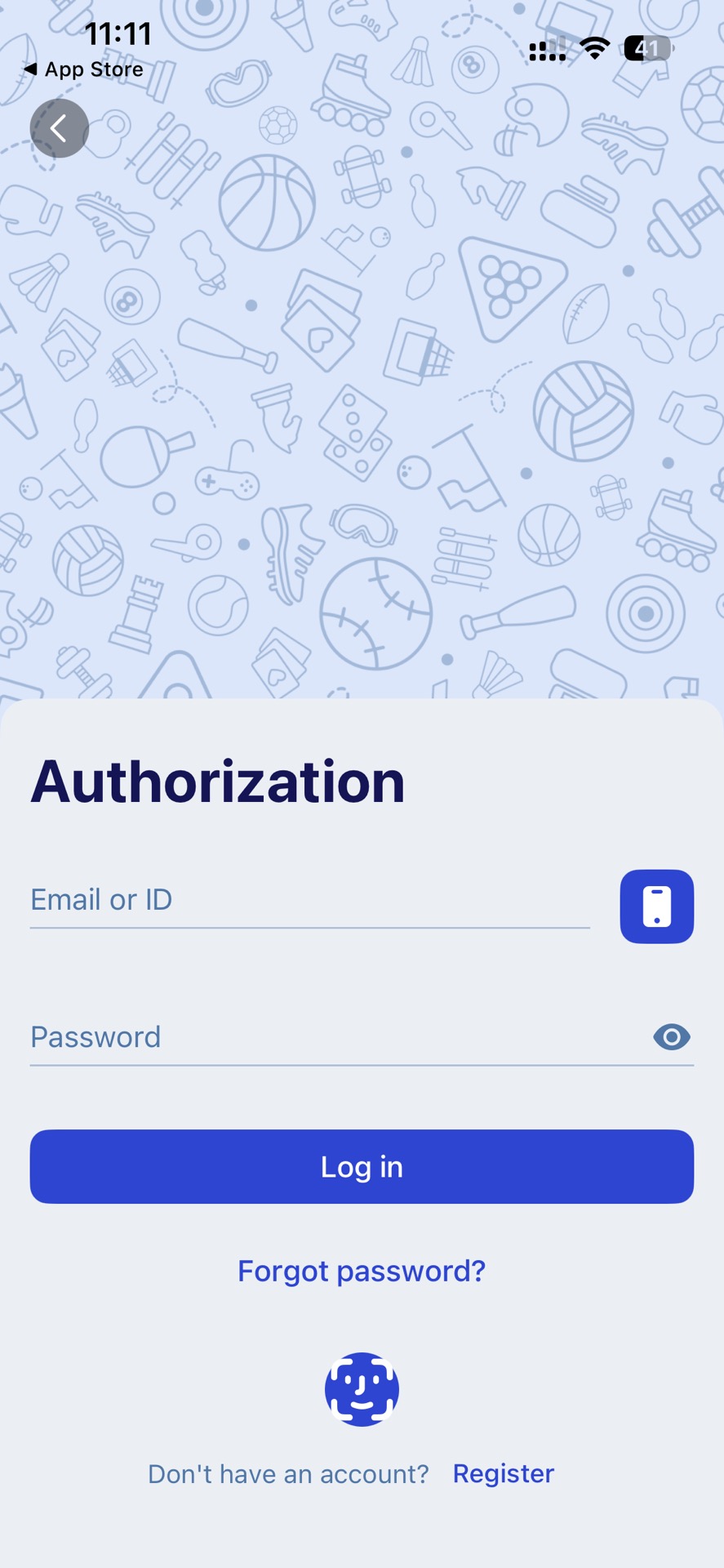
Most login problems become solvable when you treat it like “one clean attempt + proof pack,” not endless retries. Multiple attempts can trigger rate limits or temporary locks, and support can’t help without timestamps/screenshots. For example, “OTP invalid” after 10 resends, but you can’t show the error screen or the time. Use the steps below.
- Confirm you’re on the same route/app build you used before (route proof).
- Try one clean login attempt.
- If it fails, stop and capture proof: error + timestamp + device/network.
- Escalate using the ticket template in this page.
Route Proof
Wrong route, lookalike pages, regional redirects, or mismatched app builds are common hidden causes of login failure. A page may look like Paripesa but still send you through a different login path, support flow, or app update route. For example, your password is correct, but a different route loops, shows a generic error, or asks for an update that your installed app cannot satisfy. The safest next step is to collect route proof once and reuse it.
Route proof checklist
| Proof item | Why it matters | What to screenshot |
| URL/domain + timestamp (if web) | ties issue to a route | address bar + time |
| Login screen | confirms flow used | login screen |
| Support/contact entry | cross-check route | support menu/page |
| App version/build (if app) | prevents mismatch disputes | about/version screen |
| Install/update source (if app) | helps separate login issues from build issues | store/source screen + time |
Stop signs:
- “MOD / unlocked / VIP” app offers
- “helper installer” apps asking you to disable security globally
- random “login link lists” with no verifiable official source
- routes that ask for credentials before you can verify the domain/app identity
How to Log in?
You don’t need a long tutorial; you need a clean, repeatable flow that works across web and app versions. UI labels may differ between app builds, languages, and regional routes. For example, a guide says “tap X,” but your build shows “Sign in,” “Log in,” or a phone-number field first. Follow the generic flow below and document any mismatch.
Generic login flow
- Open Paripesa through your verified app or verified web route.
- Go to Login / Sign in.
- Enter your registered phone/email/player ID and password, depending on the fields shown.
- If OTP is required: request the code once and wait.
- Do not open multiple login routes at the same time.
- If it fails: screenshot error + time and stop retries.
OTP issues — delays and “invalid code” loops
OTP problems are usually caused by delay, rate limits, device time mismatch, network changes, or too many resend attempts. The main rule is simple: do not keep requesting new codes. Each resend can invalidate the previous code or trigger temporary limits, which makes a normal delay look like a broken account.
OTP not arriving
OTP delays are usually delivery/network/rate-limit issues. Spamming resend often makes it worse. For example, you request 6 codes → system rate-limits you → none arrive in time. Use the steps below.
- Wait 2–5 minutes
- Switch network (Wi-Fi ↔ mobile data)
- Check SMS/email inbox, spam/junk, and blocked-message settings if relevant
- Request OTP once more
- If still no code: escalate with proof (timestamp + network type)
“Invalid code” loop
Invalid OTP loops often come from device time drift, expired codes, multiple requested codes, or rate limits. OTP validation can be time-sensitive. For example, travel/new SIM → wrong time zone → valid code rejected. Set device time to Automatic, wait briefly, retry once with the newest code, then stop.
Lifehack — device time to Automatic
Time drift can break OTP validation. Codes are time-based. For example, wrong time zone → “invalid code” loop. Enable Automatic date/time/time zone, retry once after 2–3 minutes, then stop and escalate.
Common Login Errors & What They Usually Mean
The exact error text matters; it decides what to do next. “Not working” is not actionable for support. For example, “Update required” is a version/source problem, not a password problem. The safest next step is to match your symptom below and follow the safe action.
Login errors quick map
| Error / symptom | What it often means | What to try (safe) | Proof to capture |
| Wrong password | typo / old password | reset once; avoid many retries | error + time |
| OTP invalid loop | time drift / expired code / rate limit | set time automatic; wait 2–5 min; retry once | code screen + time |
| OTP not arriving | delivery delay / blocked message / rate limit | wait; don’t spam resend; switch network once | timestamp + network |
| Account locked | security lock / too many attempts | stop attempts; contact support | lock message |
| Endless loading | network/DNS/VPN/data saver | switch Wi-Fi/mobile; disable data saver | screen recording |
| Update required | version/source mismatch | update from same source using the App guide | prompt + version |
| Login route keeps redirecting | wrong route / regional redirect / session issue | capture route proof; clear browser tab/session once | URL + timestamp |
| App login works but web does not | route/session/browser conflict | try verified app route once; capture web error | app version + web URL |
Troubleshooting decision tree
A decision tree prevents random retries that create locks. Most issues share a small set of causes: version mismatch, route mismatch, OTP timing, network blocking, or account security lock. For example, you keep resetting your password when the real issue is an app update prompt. Follow the tree once, then escalate.
Artifact — Decision tree: “Can’t log in”
- If update required → stop retries → go to App guide → verify source + version proof → update from the same source → retry once
- If wrong route / suspicious route / redirect loop → stop → capture URL/login screen/support entry → return to verified route → retry once
- If OTP invalid → set Automatic time → wait 2–5 min → request OTP once → retry once
- If OTP not arriving → wait → switch network → request once → retry once
- If account locked → stop attempts → support with proof pack
- If endless loading → switch network, disable data saver, capture recording → support if persists
- If password error persists after one reset → stop retries → support with timestamp + route proof
Account Safety Basics
Sharing credentials turns “login problems” into recovery problems. It becomes hard to prove ownership and keep the account secure. For example, someone else logs in “to help,” changes settings, and you get locked out. Use the steps below.
- Don’t share passwords
- Don’t reuse the same password everywhere
- Don’t send OTP codes to anyone, including people claiming they can “verify” your account
- Don’t paste credentials into link lists, mirror pages, or support chats you did not reach from a verified route
- If you suspect compromise: reset password and keep proof screenshots
Support Escalation
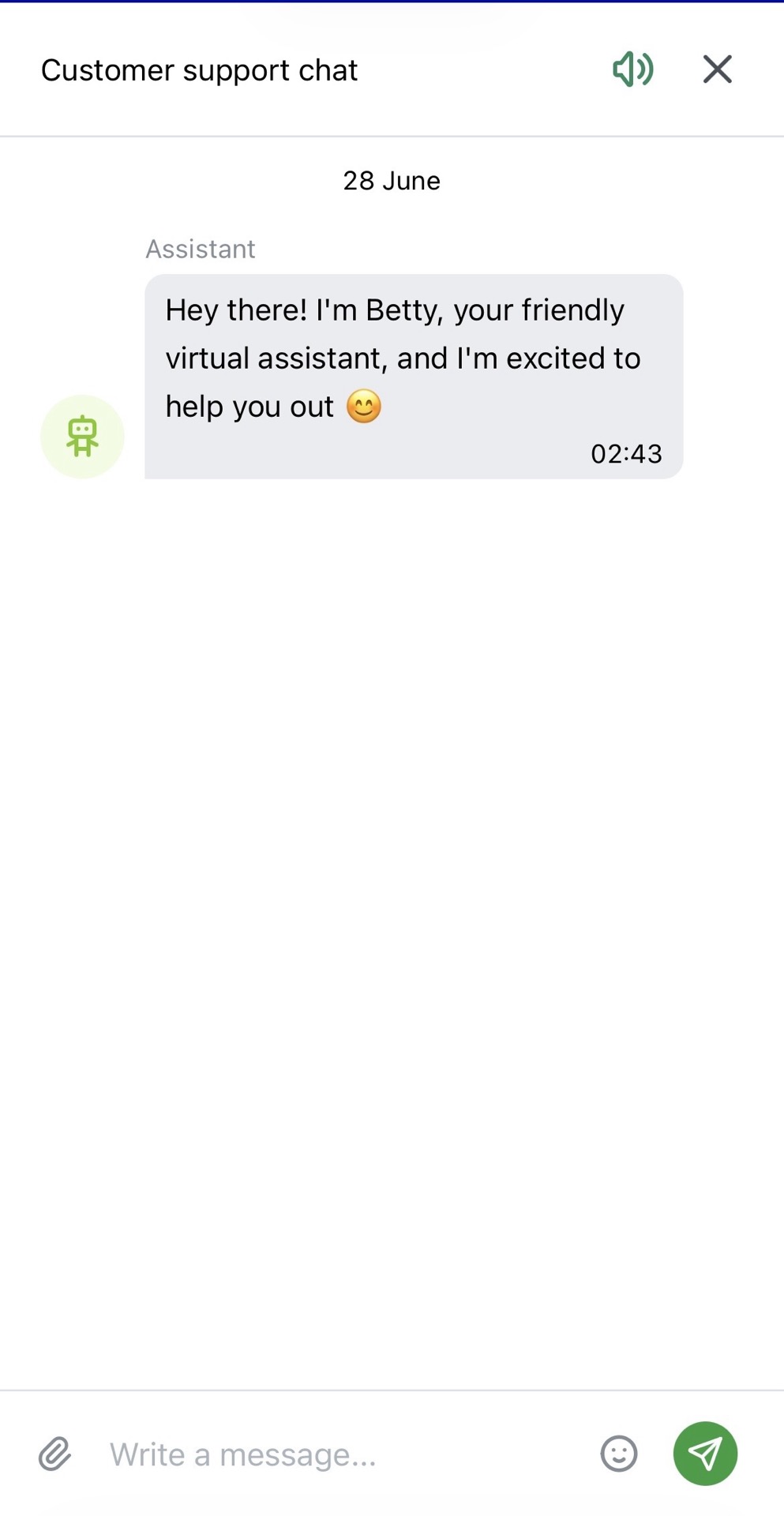
Support resolves faster with IDs, timestamps, screenshots, and a clear route/app record. They need lookup keys to find your case in logs. For example, “OTP not working” is weak; “OTP invalid at 21:14 EAT, Android 14, app version/build —, mobile data, route proof attached” is actionable. Send one structured ticket and avoid repeated follow-ups with new attempts unless support asks.
Support evidence pack
| Field | What to include |
| Route proof | route proof screenshots |
| Time | timestamp + timezone |
| Device | model + OS |
| App version/build | if app |
| Network | Wi-Fi / mobile |
| Error text | copy/paste + screenshot |
| What you tried | 1–2 steps only |
| Sensitive data removed | mask password, OTP, card/ID/payment details |
Support ticket template
| Field | What to include |
| Problem | “login issue / OTP invalid / account locked / update required” |
| Time | timestamp + timezone |
| Route proof | URL/app screen screenshots |
| Device + app version | model/OS/version |
| Network | Wi-Fi / mobile |
| Attachments | screenshots + short recording |
Copy/paste message to support
Hello, I can’t log in. Timestamp: __ (TZ __). Device: __ (OS __). App version/build: . Network: Wi-Fi/mobile. Route proof attached (URL/login screen). Error text: “”. What I tried: __. Please check my account status and advise next steps.
Visit Paripesa Uganda!Conclusion
Most Paripesa login issues are easier to solve when you stop guessing and start documenting. Confirm the route or app build, make one clean attempt, capture the error with timestamp/device/network proof, and then escalate using a structured support ticket. Avoid random login links, repeated OTP resends, and source switching, because those steps can turn a simple login failure into a lock, mismatch, or recovery case.
FAQ
Do you publish “official login links”?
No. Use route proof instead of link lists.
What should I do first if login fails?
One clean attempt, then stop and capture proof (error + time + route proof).
OTP not arriving — should I keep pressing resend?
No. Wait 2–5 minutes and retry once after switching network.
OTP says invalid repeatedly
Enable Automatic date/time/time zone and retry once; then escalate.
I got “account locked.”
Stop attempts and contact support with the proof pack.
Login page loads forever
Switch Wi-Fi ↔ mobile data, disable data saver, record the screen.
It says “update required.”
That’s a version/source problem—use the App guide and capture version proof.
What should I send support to get faster help?
Timestamp, device, app version, error screenshot, network type, and route proof.
Why do you say “try once”?
Because repeated retries can trigger locks/rate limits and slow resolution.
Is this page about deposits/withdrawals?
No. That belongs to the Paripesa Review page (Cashier-first).
What if I’m not sure which app build I have?
Use the Version Proof record (app name/version/build + source screenshot).
Why are some details shown as “—”?
Because we don’t guess brand-specific facts without proof.
Thanks for your help!
We appreciate your alertness!




You've successfully followed this author. You'll get notifications of his new tips on your registered e-mail.
You've successfully followed this expert. You'll get notifications of his new tips on your registered e-mail.
This means that you will no longer receive notifications about new posts by this author to your e-mail address.
You will no longer be notified of this expert's new tips.